

Create your first research table
Follow these four steps to go from a blank workspace to a fully populated, cited data table.Step 1: Create a new table
When you first open Blazar, you’ll see an empty workspace. Click Create new table or use the keyboard shortcut:- Mac:
Cmd+; - Windows/Linux:
Ctrl+;

Step 2: Name your table
After creating a table, you’ll see an editable title field at the top. Click it and type a descriptive name for your research — for example, “AI SaaS Companies in Europe.” Press Enter to confirm the name and move to the query input.Step 3: Enter your query
In the input field, describe what you want to research in plain language. Be specific about the entities you want, any constraints, and the data points you need extracted. Example query:Cmd + Enter (Mac) or Ctrl + Enter (Windows/Linux) to submit your query. Blazar will interpret it, research the web, and populate your table with structured results.
Step 4: Review your results
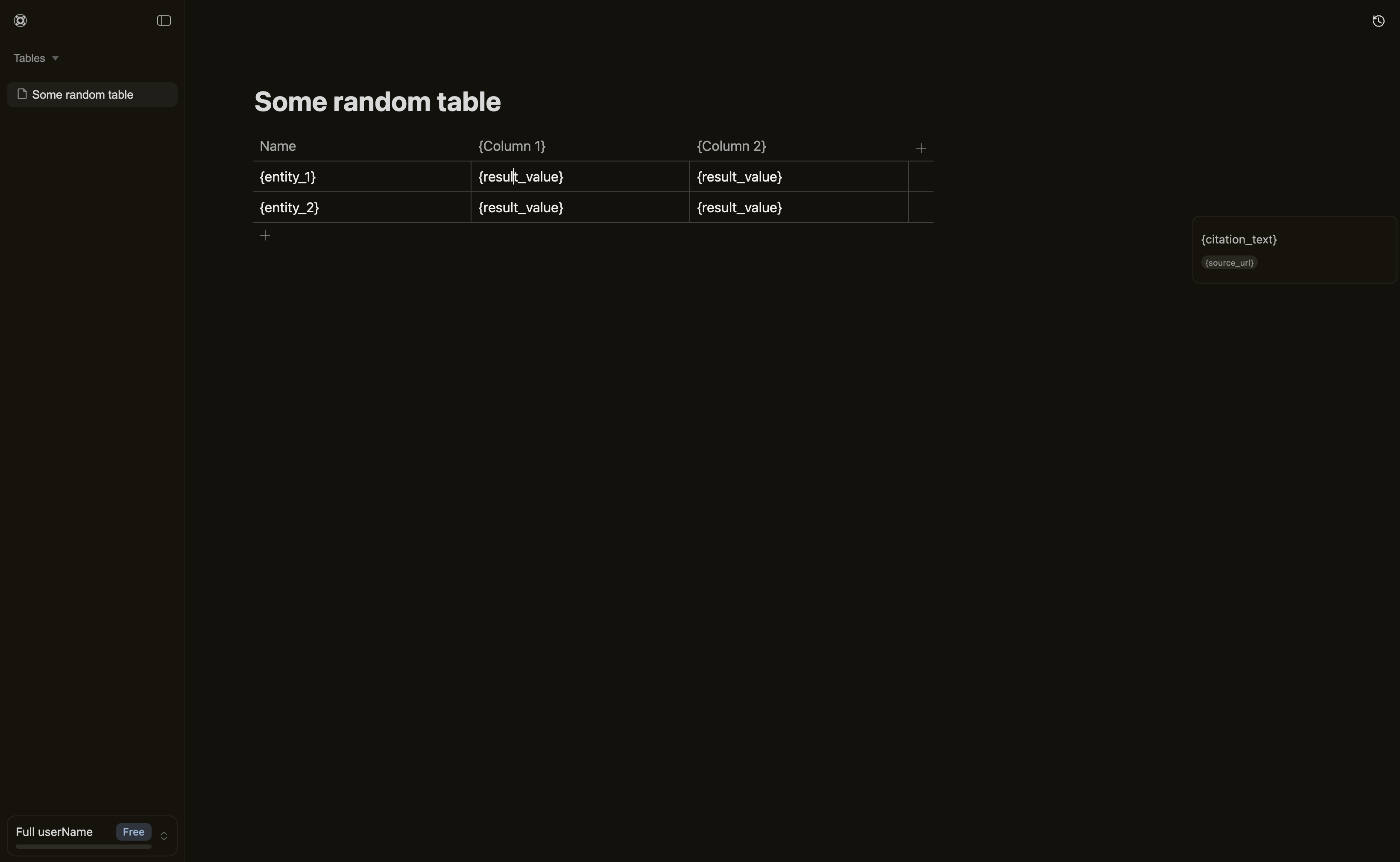
Once Blazar finishes researching, your table appears with:- Rows for each entity found (e.g., individual companies)
- Columns for each field you requested (e.g., website, headquarters, employee count)
- Citations linked to every cell — click any cell to see its sources
Next steps
Tables
Learn how to manage multiple tables and organize your research.
Queries
Write better queries to get more precise results.
Citations
Understand how to verify and use cited sources.
Sidebar
Navigate between your tables with the sidebar.